Trigger Buttons
The Portal exposes a Triggers dropdown in the header bar that lets users fire event-trigger Triggers from the UI. Each Trigger that opts in to this convention appears as a button in the dropdown; clicking it opens a modal that either confirms the action or collects parameters before submitting an event.
This page is dual-purpose: it documents what an operator sees in the dropdown and modal, and the conventions a trigger author must follow for a Trigger to appear there.
How a Trigger becomes a button
A Trigger appears in the Triggers dropdown when all of the following are true:
TriggerProviderisevent-triggerParams["event-trigger/event-match"]starts withux.button.<id>- the Trigger is enabled (see Enabling and Disabling for the precedence rules)
If no Triggers match, the dropdown itself is hidden from the header — there is no empty state. The dropdown updates live as Triggers are created or deleted on the endpoint.
The <id> suffix is the event key the Portal will submit when the button is
clicked.
Minimal example
drpcli triggers create - <<EOF
Name: reboot-all-button
Description: Reboot every machine in the fleet
Documentation: Reboots every machine in the fleet. This is irreversible.

AllInFilter: true
Blueprint: reboot-fleet
Enabled: true
Filter: "Runnable=true"
FilterCount: 1
MergeDataIntoParams: false
Params:
  event-trigger/event-match: ux.button.reboot-all
  ux/alias: Reboot Fleet
TriggerProvider: event-trigger
Meta:
  color: red
  icon: power
EOF
The resulting button in the Portal:
- Label: Reboot Fleet (from
Params["ux/alias"], falling back toName) - Icon: power (from
Meta.icon) - Color: red (from
Meta.color)
Clicking it opens a confirmation modal that includes the rendered
Documentation and a Submit button. Submit publishes a DRP event of
Type=ux Action=button Key=reboot-all, which the event-trigger provider
matches against event-trigger/event-match and fires the reboot-fleet
Blueprint.
Per-button display fields
The dropdown reads these fields from each matching Trigger:
| Display element | Source |
|---|---|
| Label | Params["ux/alias"], falling back to Name |
| Icon | Meta.icon (see the Meta editor's icon picker for valid names) |
| Color | Meta.color |
Meta.icon and Meta.color are the same fields used for object display
throughout the Portal, and can be set from the Trigger's Meta tab in the
inspector.
Enabling and Disabling
A button is shown and clickable when both of these are true:
- the Trigger has
Enabled: true, or theglobalprofile has the paramtrigger/<trigger-name>-enabled: true - the
globalprofile does not havetrigger/<trigger-name>-disabled: true
A button is hidden entirely (not shown in the dropdown at all) when the
Trigger is ReadOnly: true, is disabled, and has no global override enabling
it — this keeps content-pack-supplied buttons out of the way until an operator
opts them in.
Otherwise the button is shown but greyed out.
These per-trigger global overrides are managed from the Trigger inspector via
the Enabled (via Global) control, which writes the
trigger/<name>-enabled / trigger/<name>-disabled params on the global
profile.
The modal: confirm vs. form
Every click opens a modal — there is no instant-invoke path. What the modal
contains is driven by the Trigger's Meta.required and Meta.optional fields.
If the Trigger's Documentation field is set, the Portal renders it as
markdown at the top of the modal — above the form, or in place of it for
confirm-only buttons. Use this for context, warnings, or links to related
runbooks.
Confirmation modal
When both Meta.required and Meta.optional are empty (or unset), the modal
shows the Trigger's Documentation and a Submit button. This is the right
shape for one-shot actions like the reboot example above.
Parameter form
When either Meta.required or Meta.optional is set, the modal renders a form
whose fields are derived from those param names.
Both fields are comma-separated lists of DRP Param names.
The Portal looks each name up against the endpoint's params and uses each
Param's schema to render an appropriate input (text, number, dropdown, etc.)
and to supply a default value.
For example, a trigger with:
Meta:
  required: my-trigger/target-environment,my-trigger/deployment-version
  optional: my-trigger/deployment-notes
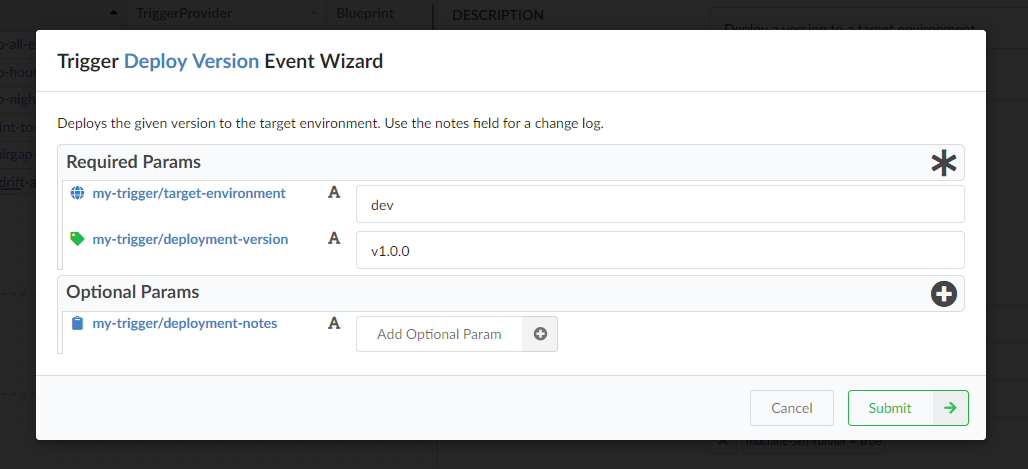
will render a form with three fields. my-trigger/target-environment and
my-trigger/deployment-version must be supplied before the form can be
submitted; my-trigger/deployment-notes is shown but not required.
The required/optional fields on the Meta tab in the Trigger inspector are only
visible when the Trigger is a button trigger (i.e. its event-match starts
with ux.button.). For non-button event triggers they are not editable from
the UI.
MergeDataIntoParams is required for forms
When the form is submitted, the values become the Object field of a DRP
event. For those values to flow into the resulting Work Order's Params, the
Trigger must have MergeDataIntoParams: true. The Meta tab surfaces this with
a warning and a quick-toggle when a button Trigger has required or optional
params but no merge enabled. Without MergeDataIntoParams, the modal still
functions but the Blueprint will run with no access to the user-supplied
values.
See the Trigger Object reference for the underlying
MergeDataIntoParams field semantics.
Worked example: a button with a form
drpcli triggers create - <<EOF
Name: deploy-version-button
Description: Deploy a version to a target environment
Documentation: Deploys the given version to the target environment. Use the notes field for a change log.

AllInFilter: false
Blueprint: deploy-version
Enabled: true
Filter: "machine-self-runner=true"
FilterCount: 1
MergeDataIntoParams: true
Params:
  event-trigger/event-match: ux.button.deploy-version
  ux/alias: Deploy Version
TriggerProvider: event-trigger
Meta:
  color: blue
  icon: rocket
  optional: my-trigger/deployment-notes
  required: my-trigger/target-environment,my-trigger/deployment-version
EOF
Clicking Deploy Version in the Portal:
- Opens a modal titled Trigger Deploy Version Event Wizard with the
Documentationrendered above the form. - Renders three inputs sourced from the
my-trigger/target-environment,my-trigger/deployment-version, andmy-trigger/deployment-notesParams on the endpoint. - On Submit, POSTs an event of the shape
{Type: "ux", Action: "button", Key: "deploy-version", Object: { ... form values ... }}. - The
event-triggerprovider matchesux.button.deploy-versionagainstevent-trigger/event-matchand fires thedeploy-versionBlueprint with the form values merged into the Work Order'sParams.
Cross-references
- Triggers (developer guide) — overall Trigger model
- Trigger Object — full field reference, including
MergeDataIntoParams - Trigger Provider —
event-triggerprovider documentation - Work Orders — the runtime objects created when a button fires